

Rangam internal connector
Database MCP
A guided setup for connecting Claude or ChatGPT to approved database tools through a controlled MCP endpoint with OAuth access and policy-based permissions.
For approved Rangam users configuring secure AI-assisted database access.
What is MCP?
MCP stands for Model Context Protocol. In this app, it gives Claude or ChatGPT a controlled way to use approved database tools through OAuth, policy-based permissions, and auditable activity.
What you need
- Your MCP OAuth Client ID
- Your assigned OAuth secret
- Access to Claude or ChatGPT connector settings
- Database tool permissions approved by policy
Users sign in with assigned MCP credentials.
Claude or ChatGPT reaches the controlled MCP endpoint.
Only policy-approved database tools are available to the AI client.
How access is protected
Built for controlled internal database access.
Access is limited to approved Rangam users with company
email addresses ending in @rangam.com.
Claude or ChatGPT must authorize through the configured OAuth flow before database tools are available.
The connector is designed for approved read-only tools and read-only SQL access.
Login, token, admin, and MCP requests are rate limited, and SQL commands have a configured execution timeout.
Tool output follows configured policies, sensitive objects are blocked, and result sizes are limited.
Tool usage is logged with sanitized input details for review and operational traceability.
Connector values
Use these while creating the custom connector.
Connector name
Rangam Database MCP
MCP URL
https://mcp.rangaminc.com/mssql
OAuth Client ID
Your assigned OAuth Client ID
OAuth secret
Your assigned OAuth secret
Choose your AI client
Switch the instructions for Claude or ChatGPT without leaving this page.
ChatGPT setup
Create a ChatGPT custom app in Developer mode, point it to the MCP server URL, and use a Developer mode chat to test the tools.
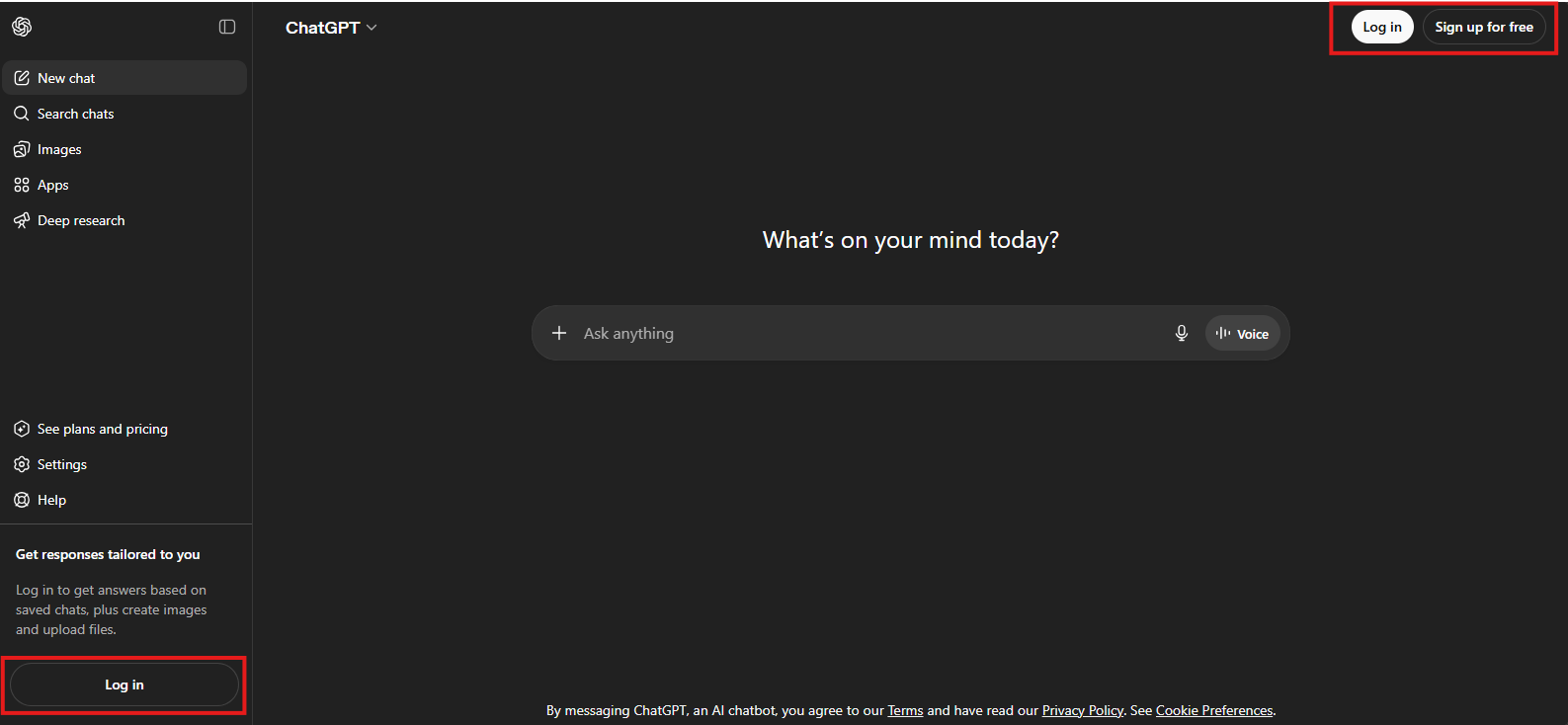
Sign in to ChatGPT
Open ChatGPT and log in to your account before opening the app setup options.
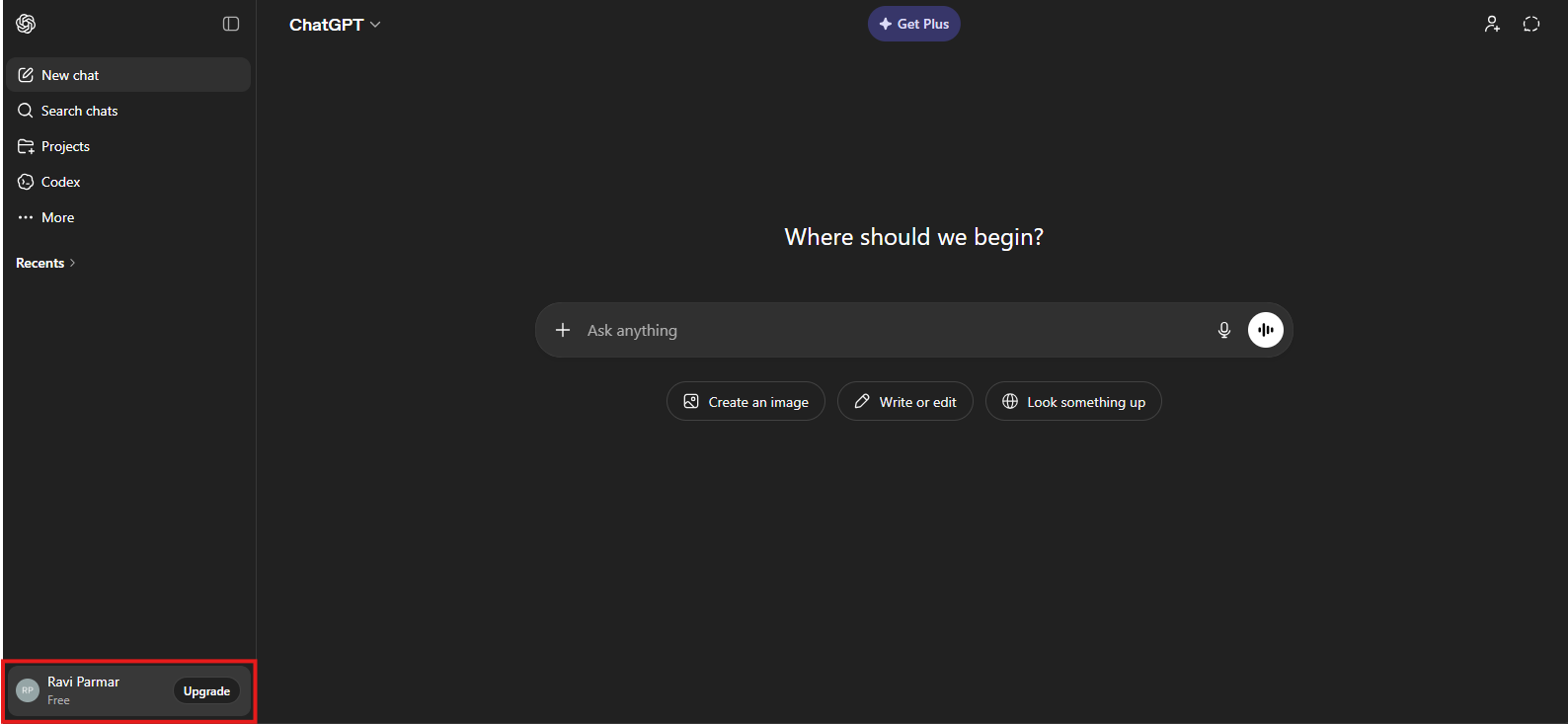
Open your profile menu
Click your profile card from the bottom-left corner.
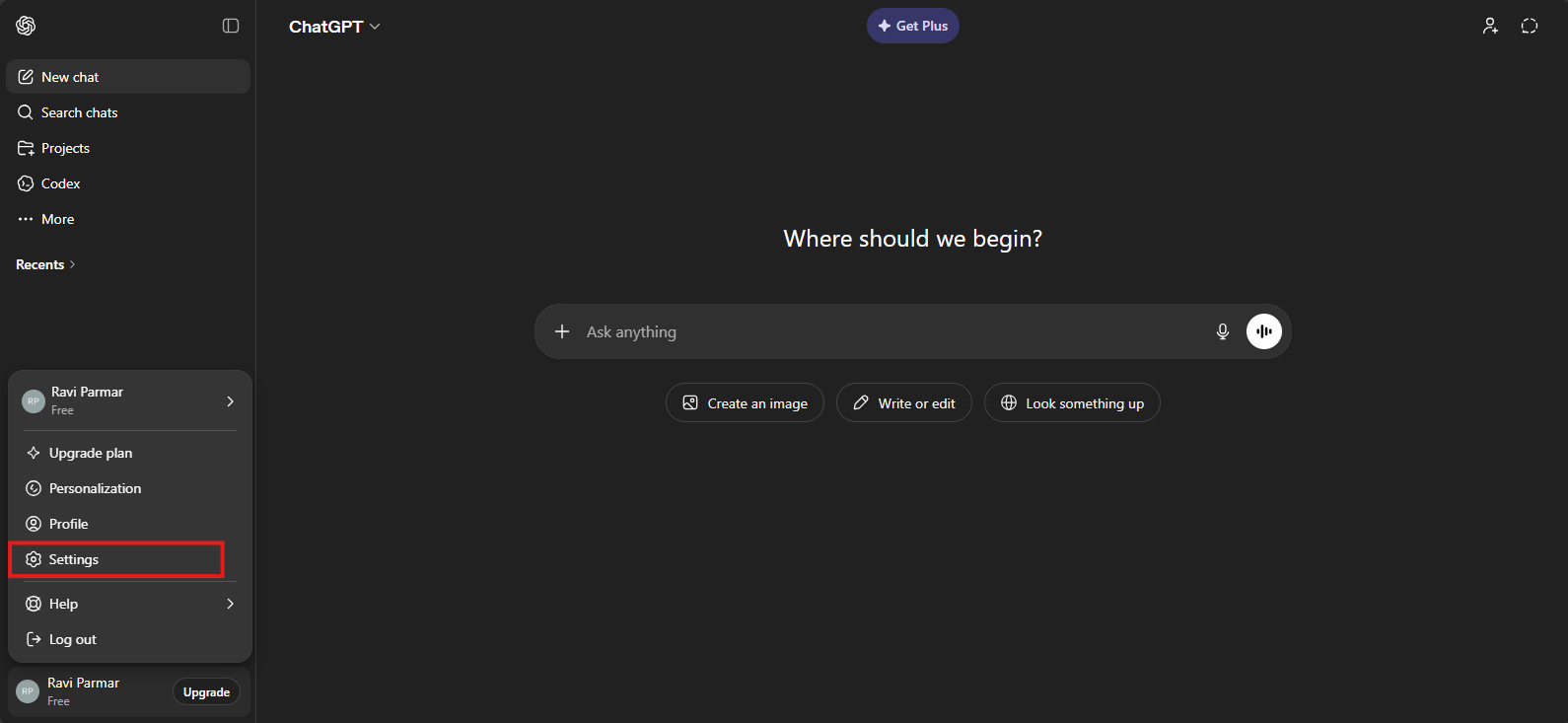
Go to Settings
From the profile menu, click Settings.
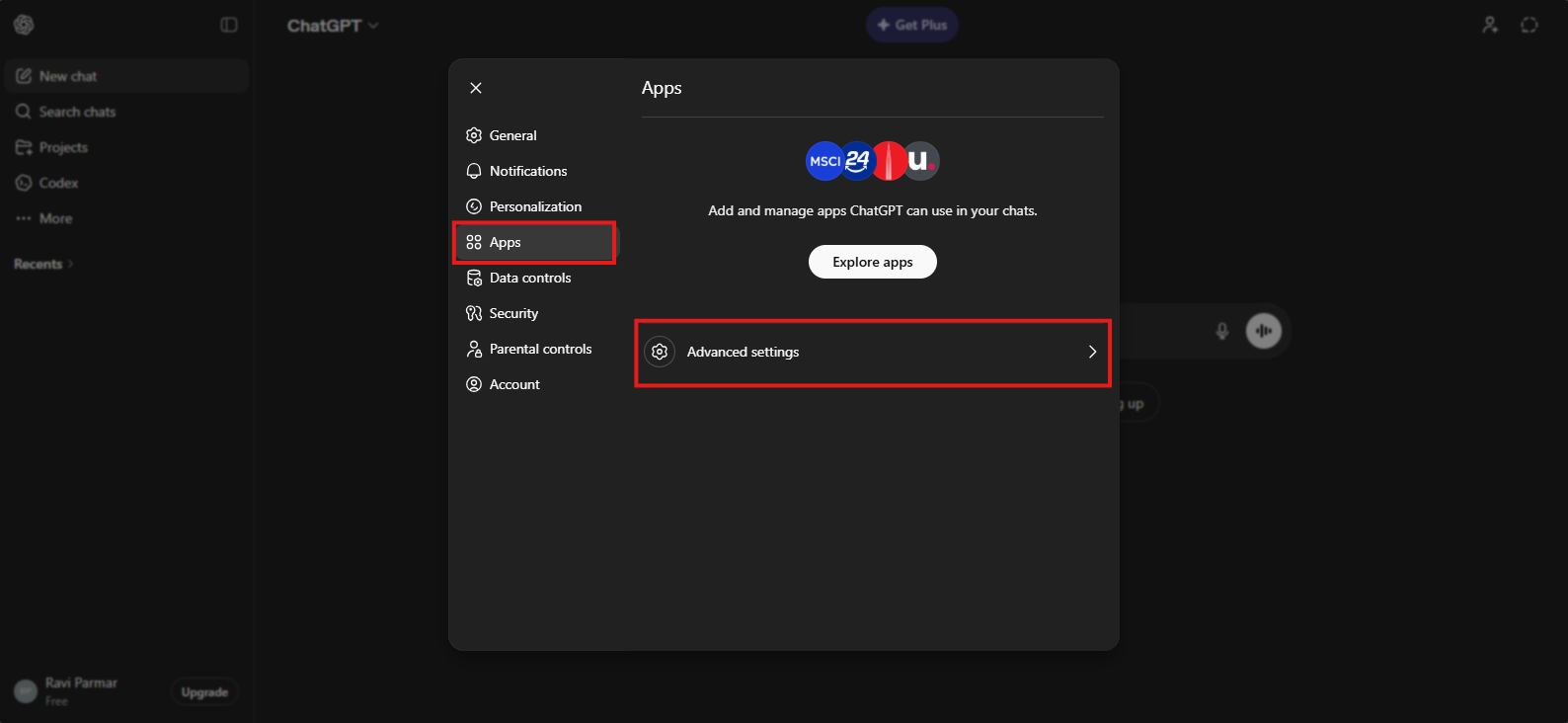
Open Apps and Advanced settings
In Settings, select Apps and then open Advanced settings from the Apps panel.
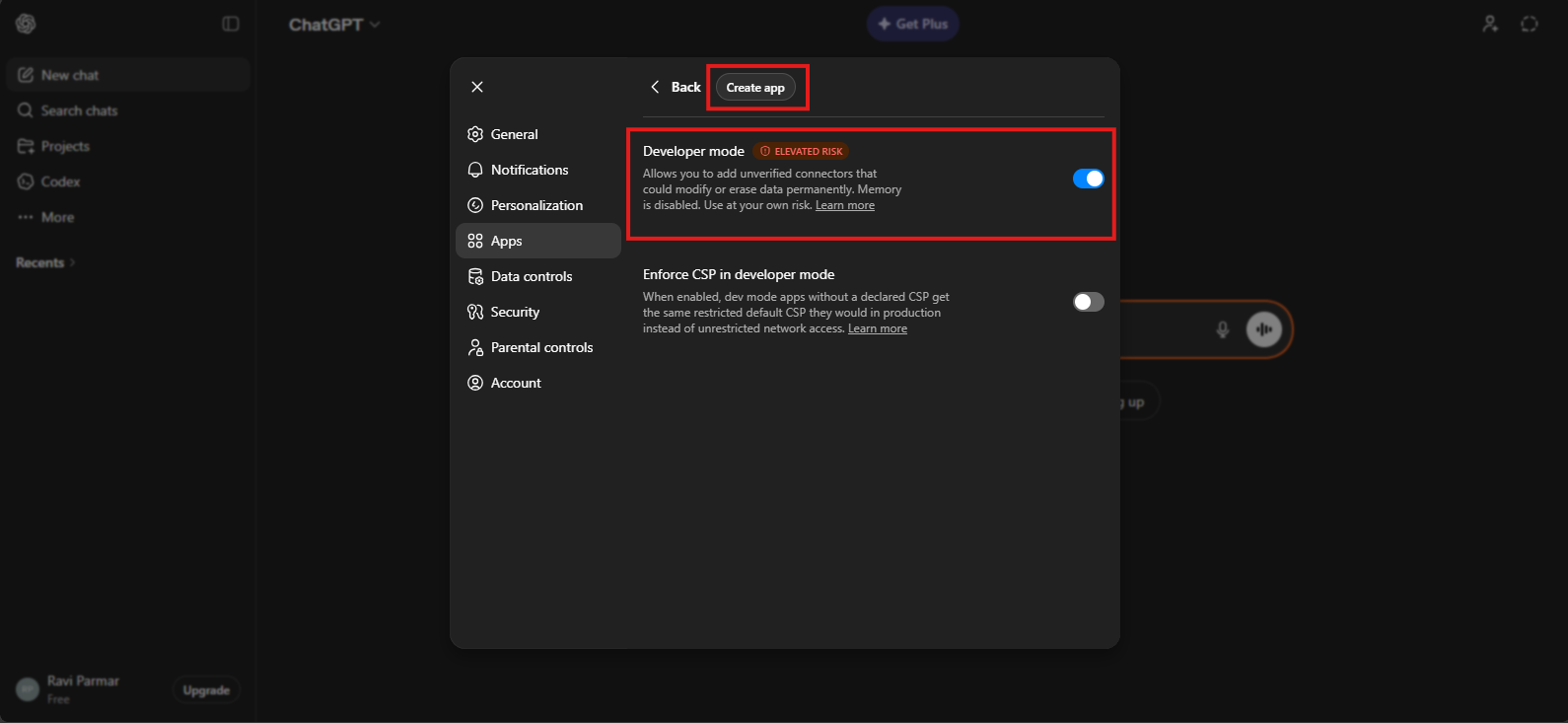
Enable Developer mode
Turn on Developer mode, then click Create app to register the MCP server.
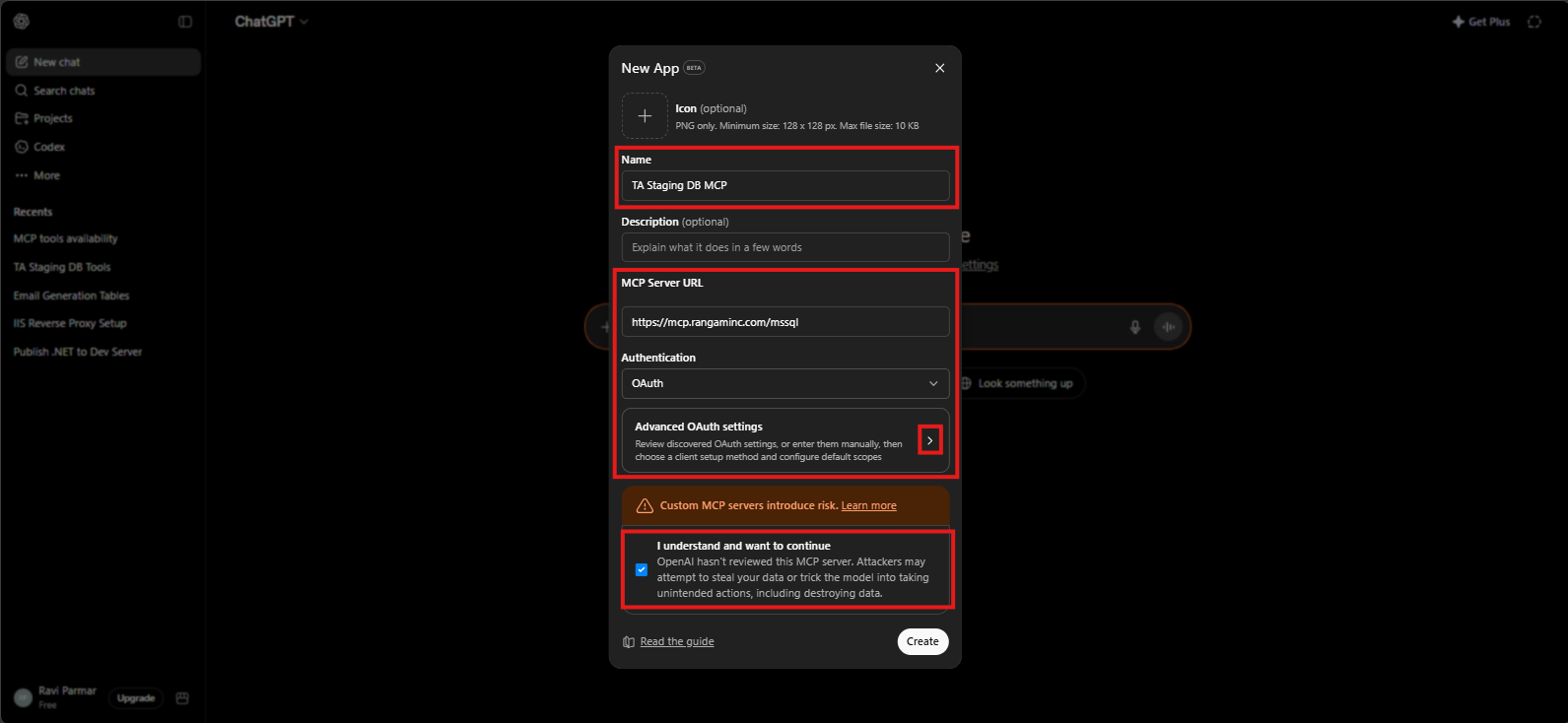
Enter MCP app details
Enter the app name and MCP Server URL, select OAuth, open Advanced OAuth settings, and confirm the custom MCP warning.
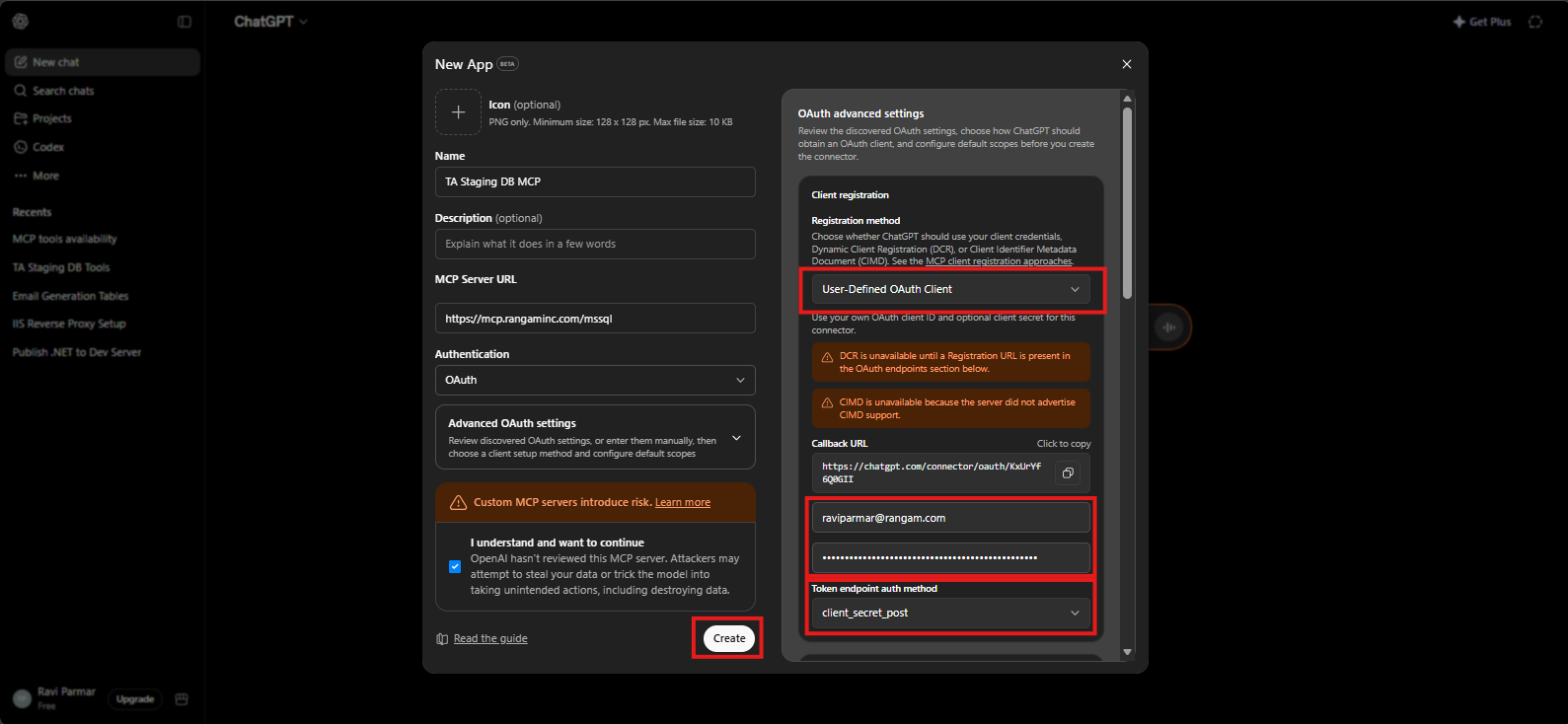
Configure Advanced OAuth settings
Select User-Defined OAuth Client, enter your MCP email and OAuth Secret, set the token endpoint auth method, and click Create.
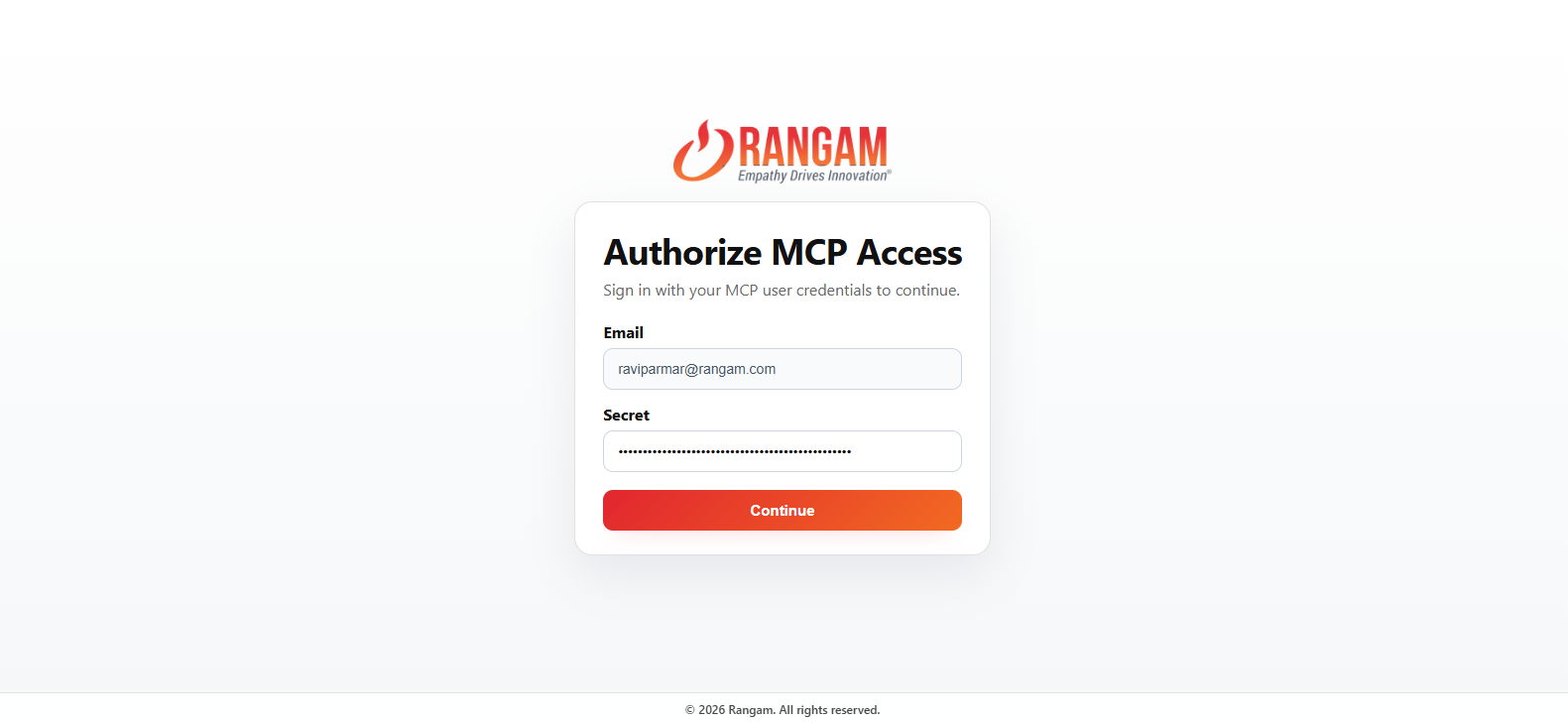
Authorize MCP access
Sign in with your MCP email and OAuth Secret, then click Continue.
Start a Developer mode chat
Start a new chat and ask ChatGPT to use the custom MCP app to list the available tool access.
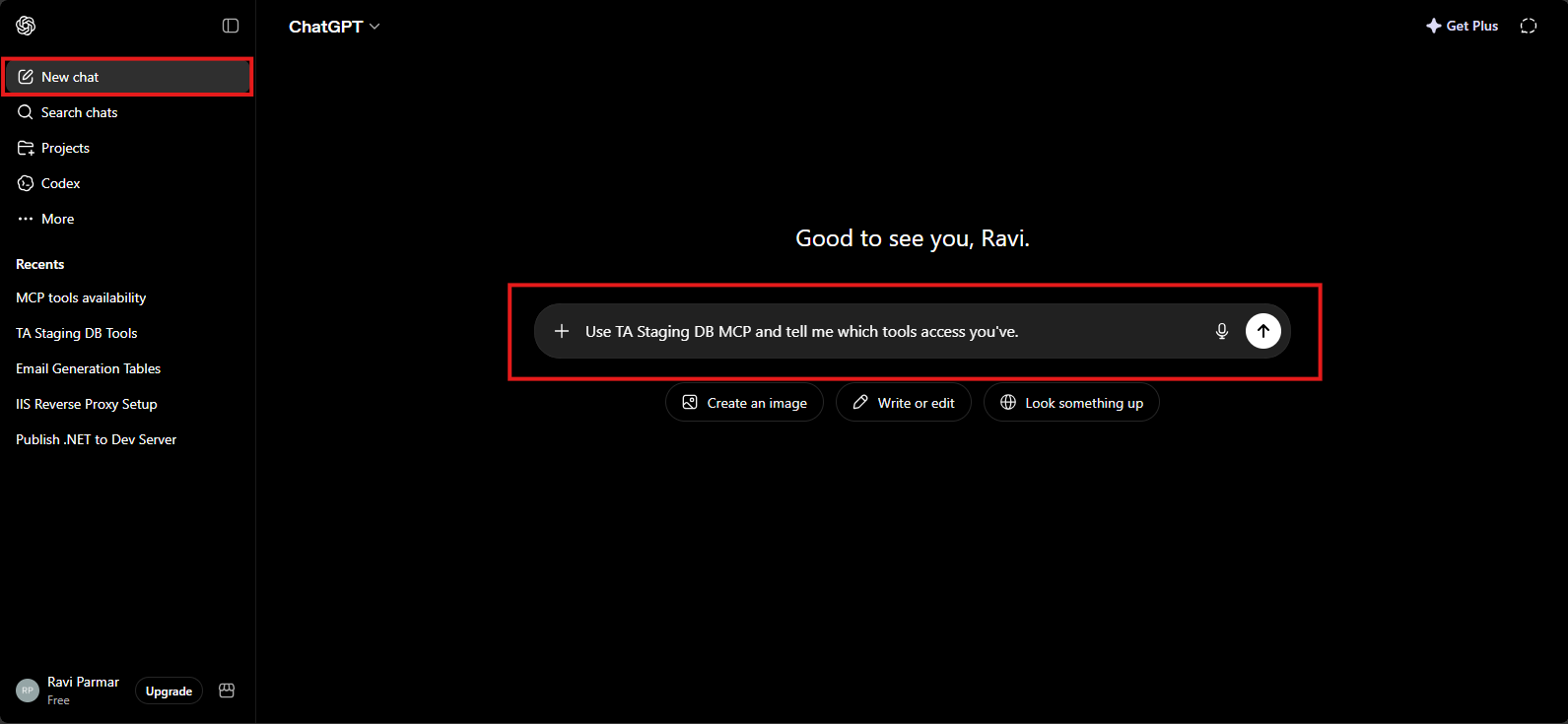
ChatGPT test prompt
Use Database MCP and tell me which tools access
              you've.
- Your MCP server must be running.
- The URL must be public HTTPS.
- Keep your MCP email and OAuth Secret ready for sign-in.
- Keep read-only tools as Always allow.
- Keep risky tools as Needs approval or Blocked.
Claude setup
Add the MCP server as a custom Claude connector, configure tool access, sign in with your OAuth Secret, and test it from a new Claude chat.
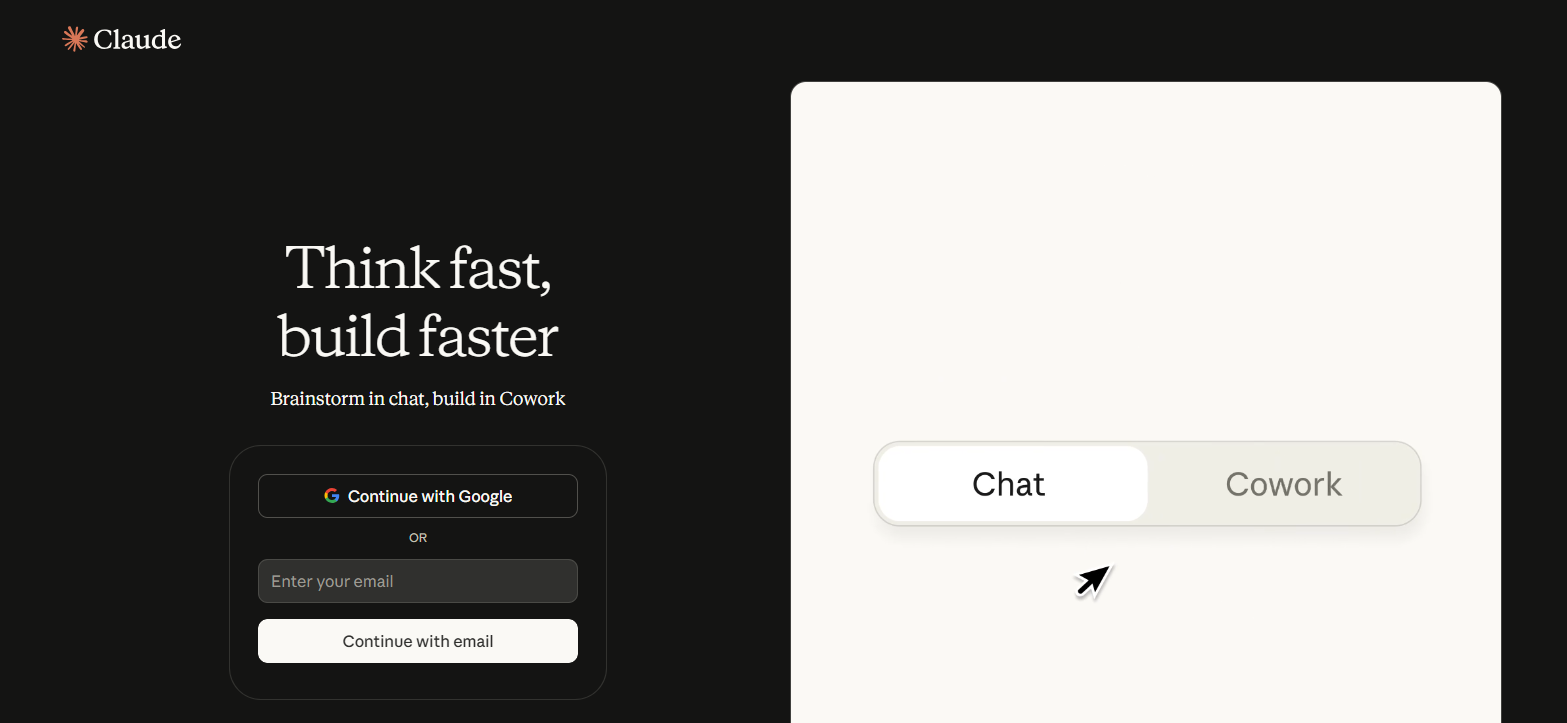
Sign in to Claude
Open Claude and sign in using Google or email. After login, you will land on the main Claude home screen.
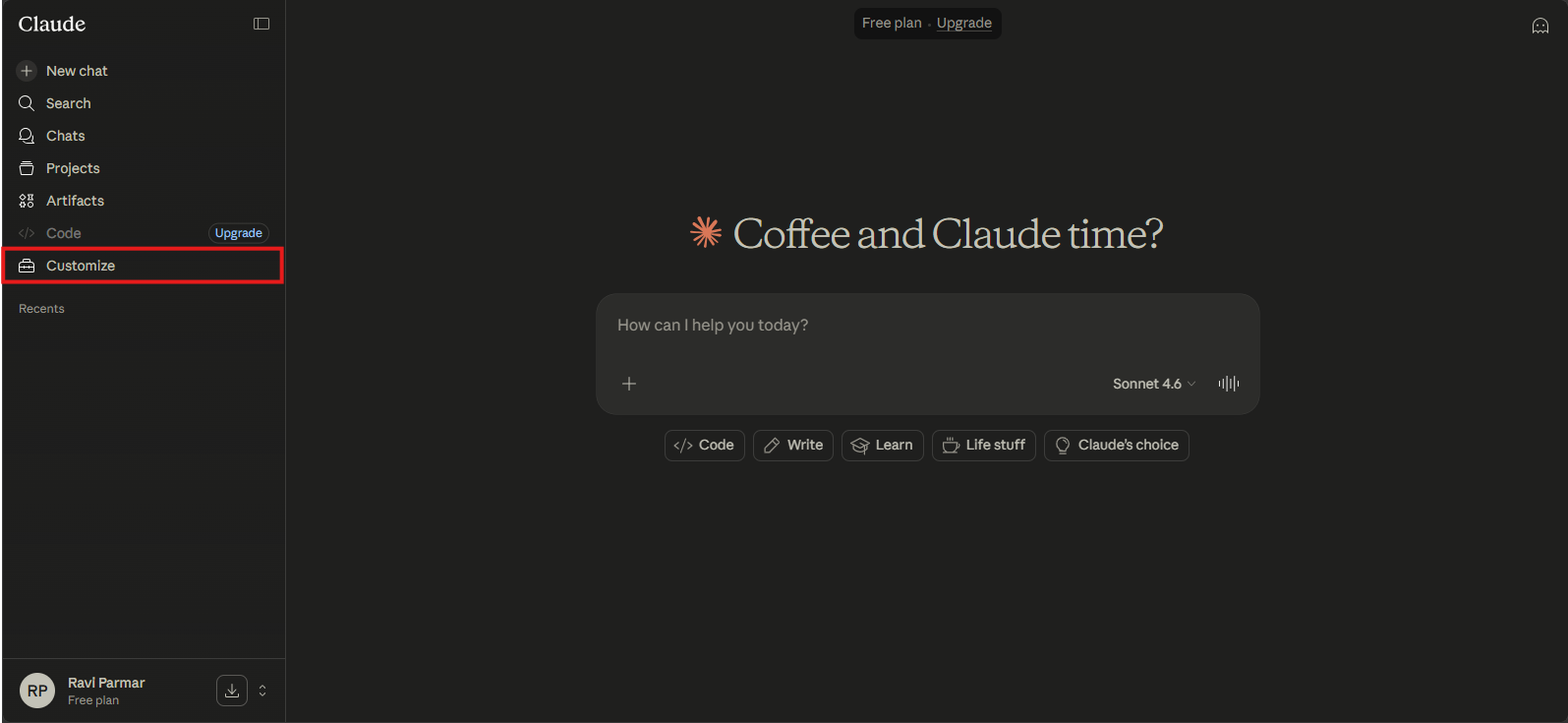
Open Customize
From the left sidebar, click Customize.
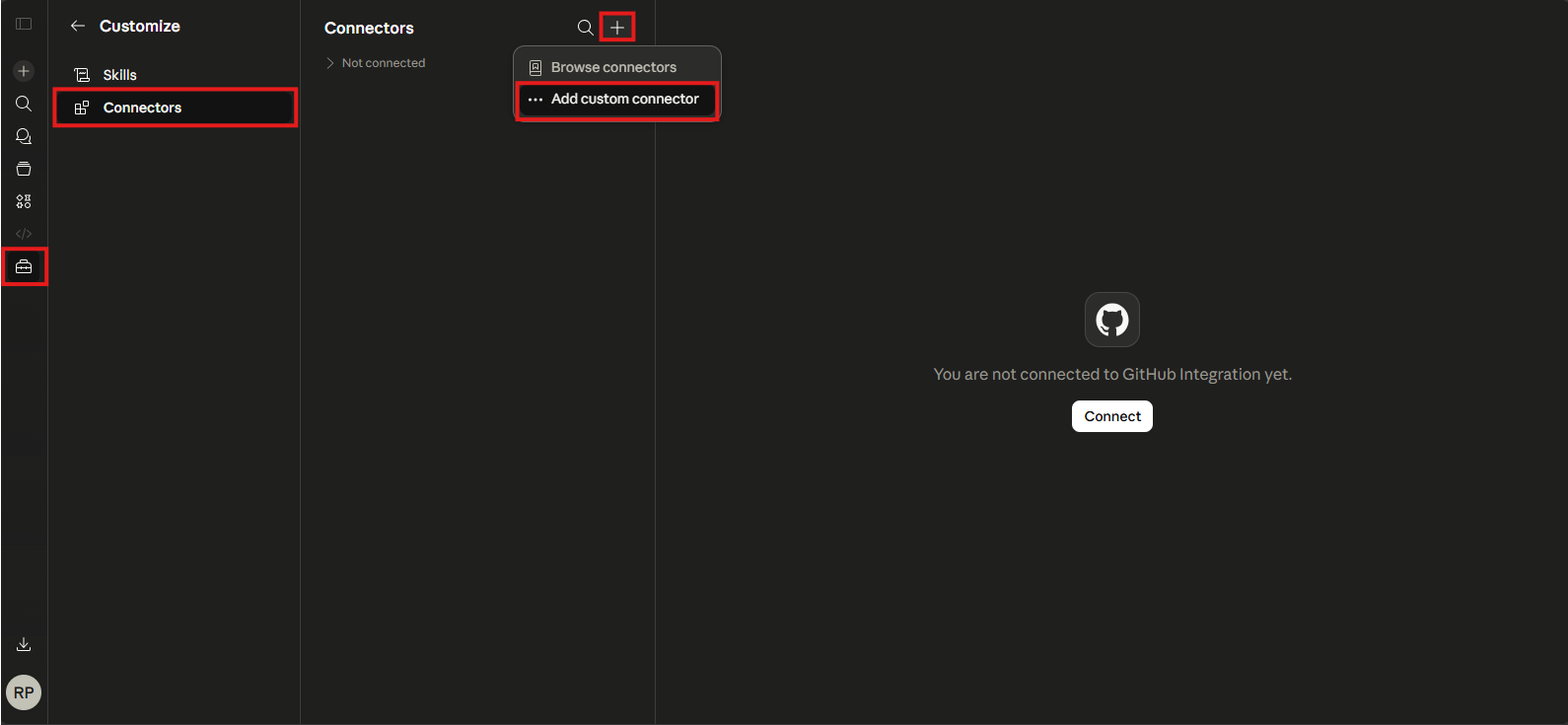
Open Connectors and add a custom connector
Inside Customize, select Connectors, click the plus button, and choose Add custom connector.
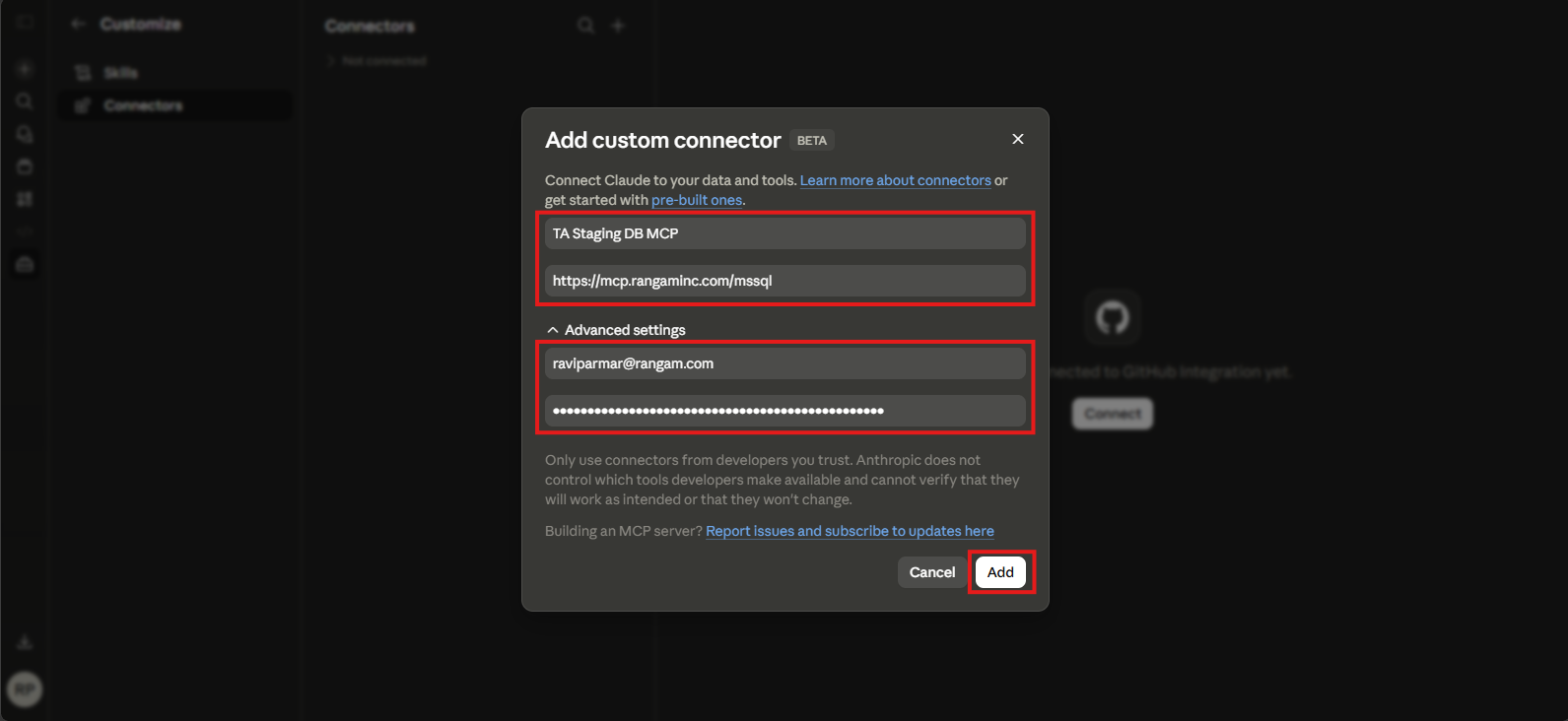
Enter connector details
Enter the connector name, HTTPS MCP URL, email, and OAuth Secret, then click Add.
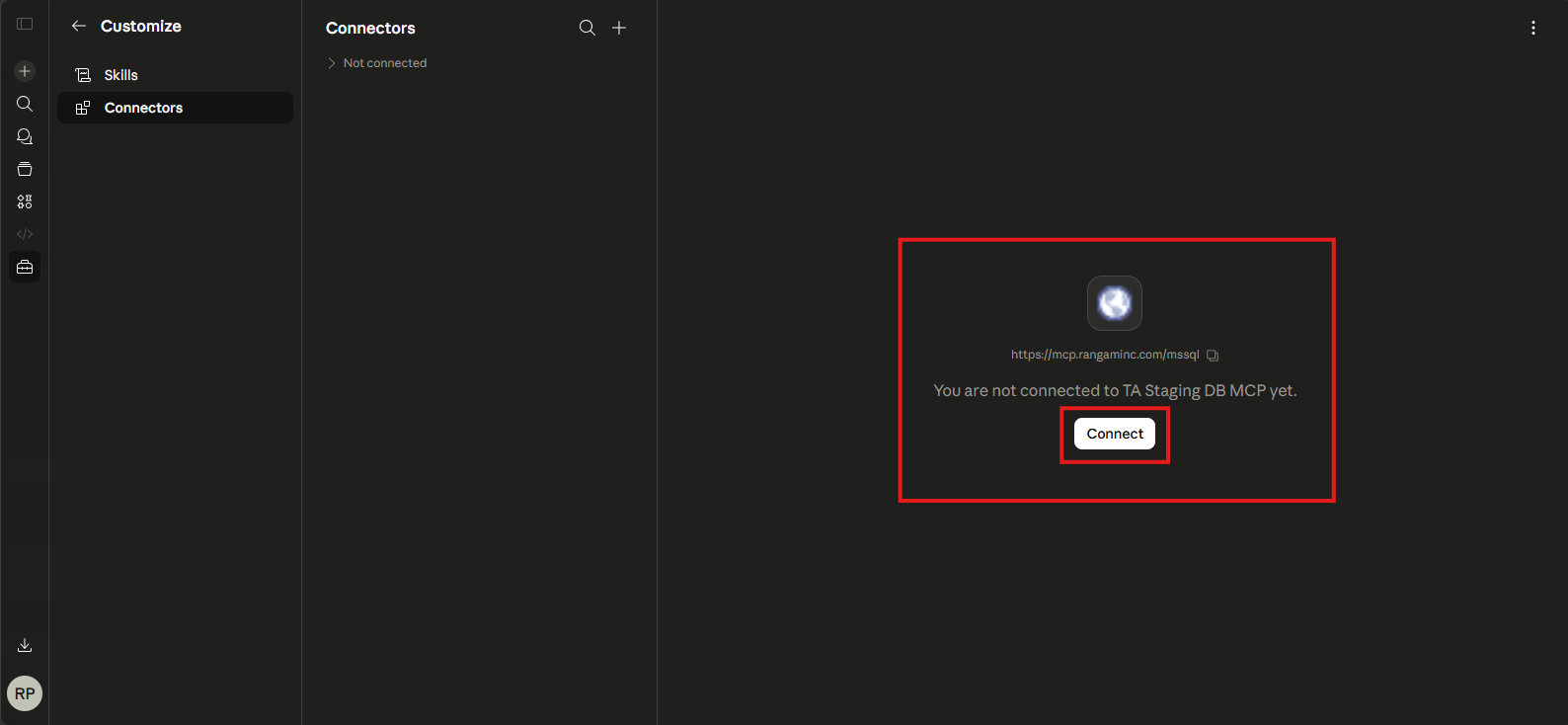
Connect the custom connector
After the connector appears in the list, click Connect on the right side.
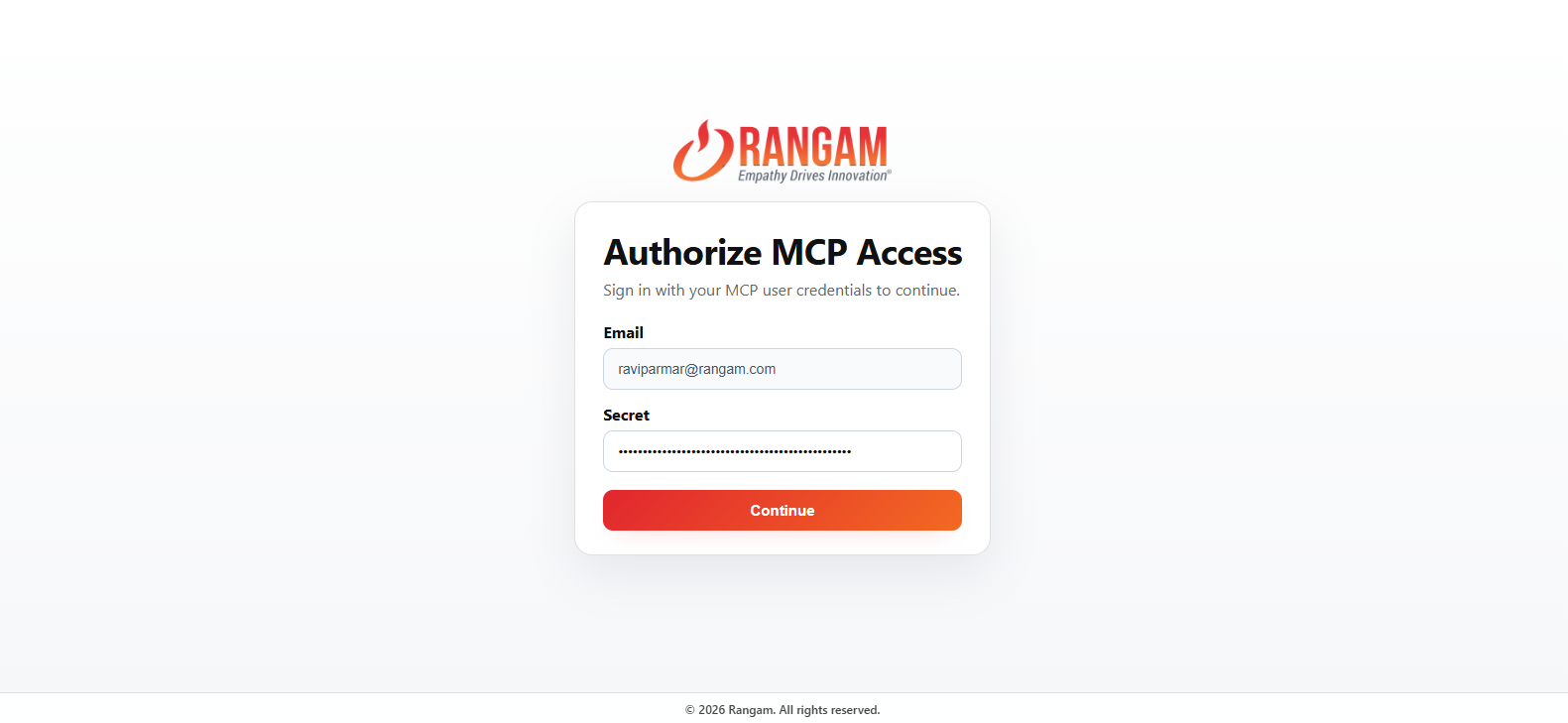
Authorize MCP access
Sign in with your MCP email and OAuth Secret, then click Continue.
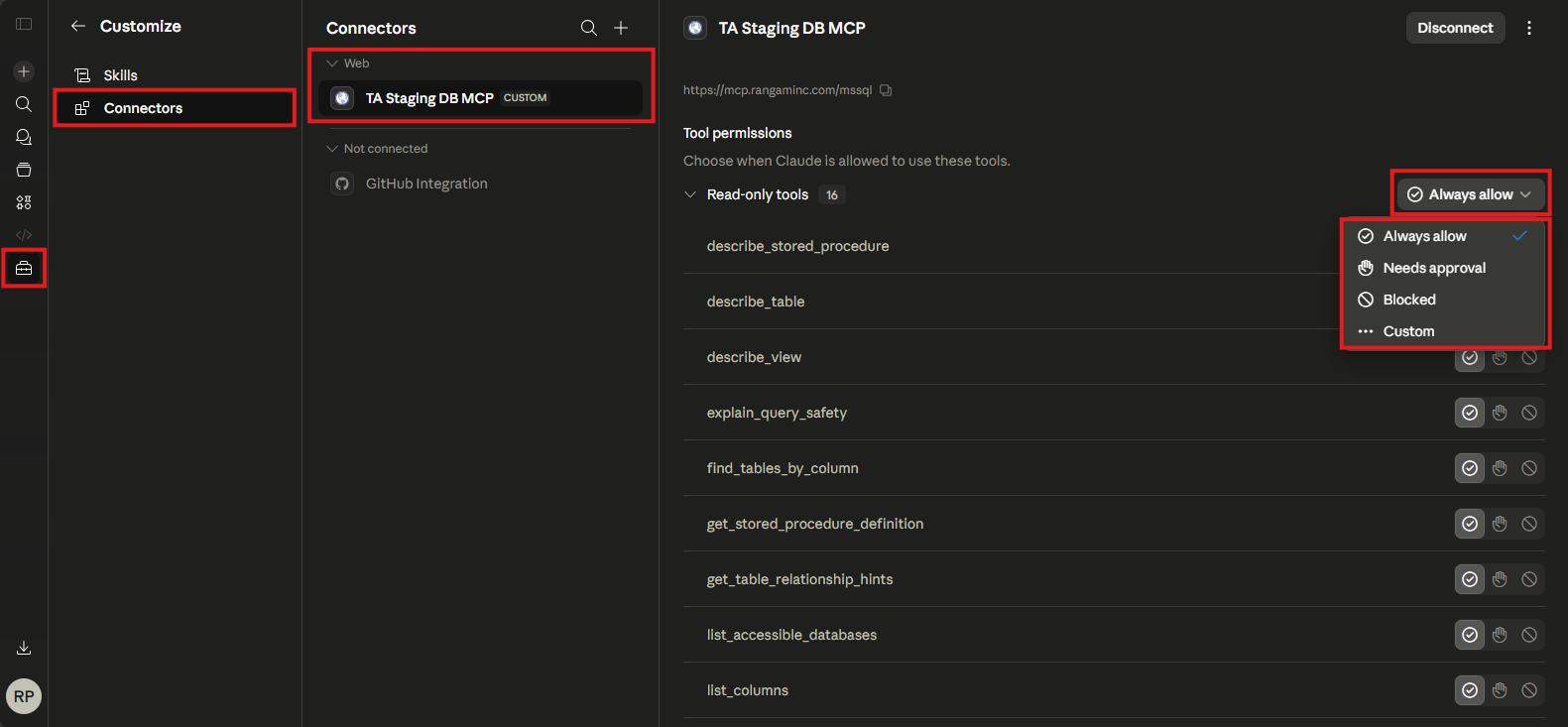
Set tool access safely
For read-only tools, choose Always allow. For risky tools, use Needs approval or Blocked.
Start using MCP in chat
Create a new chat and ask Claude to use the custom MCP connector.
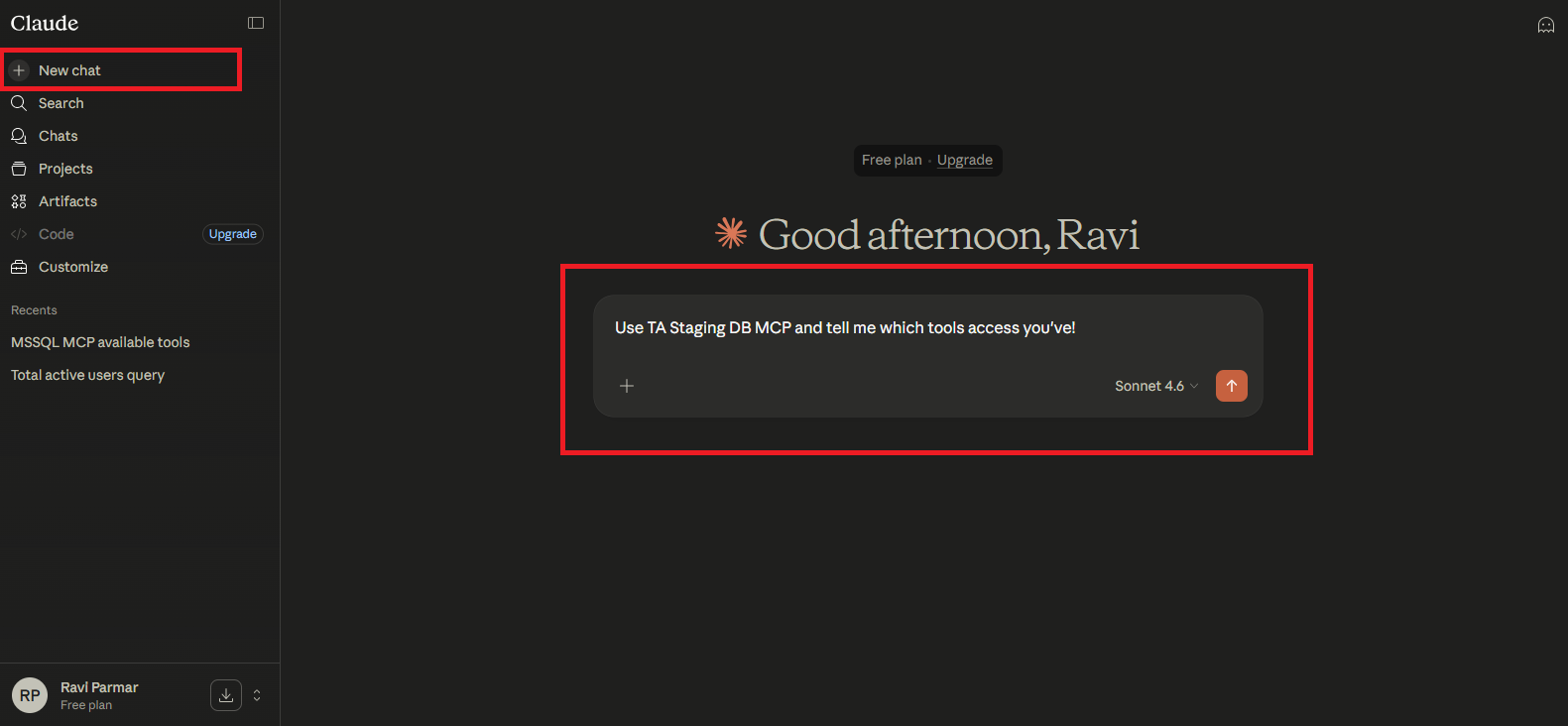
Claude test prompt
Use Database MCP and tell me which tools access
              you've.
- Your MCP server must be running.
- The URL must be public HTTPS.
- Keep your MCP email and OAuth Secret ready for sign-in.
- Keep read-only tools as Always allow.
- Keep risky tools as Needs approval or Blocked.